Upload guidelines
Use this page as a simple checklist before you submit a customization to Symfonium Customizations.
Before you upload
Before you submit a customization:
- Make sure the exported file comes directly from Symfonium or from your icon pack build.
- Add at least one screenshot that clearly shows what users will get.
- Use a clear name and description so people understand what the file changes or provides.
- Avoid offensive, deceptive, or copyright-infringing content.
For faster review, try to keep the listing practical and honest:
- show the real look of the customization in your screenshots
- use version notes to explain what changed between releases
- do not upload someone else's work without permission
How to export from Symfonium
The exact menu wording may change between Symfonium releases, but the general flow stays the same:
- Open the style, color theme, layout, or smart playlist you want to share in Symfonium.
- Go to the matching customization screen inside the app.
- Save the current style or theme with a clear name first.
- Export the saved entry.
- Return to Symfonium Customizations and upload that exported file directly.
Full application styles and now playing styles
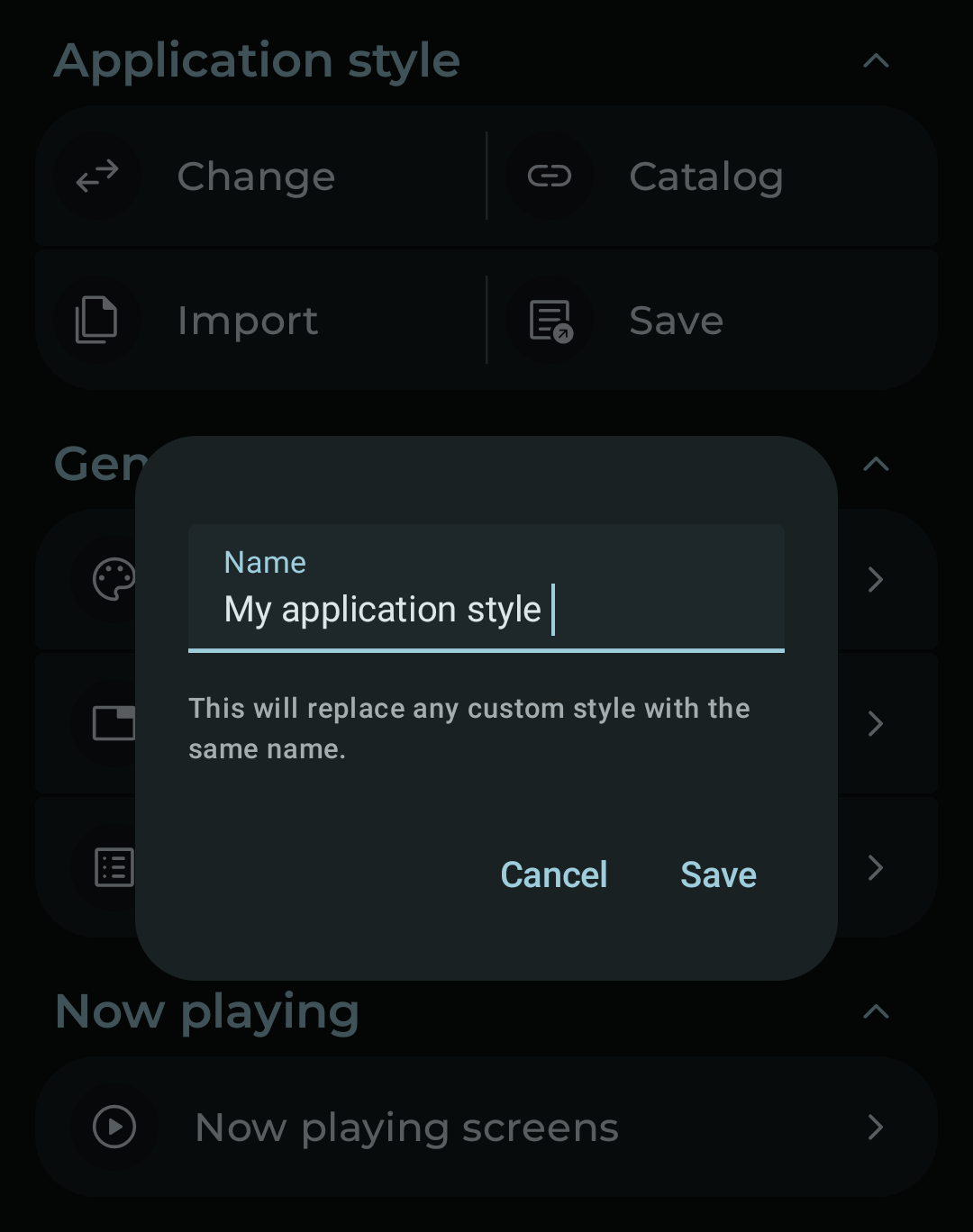
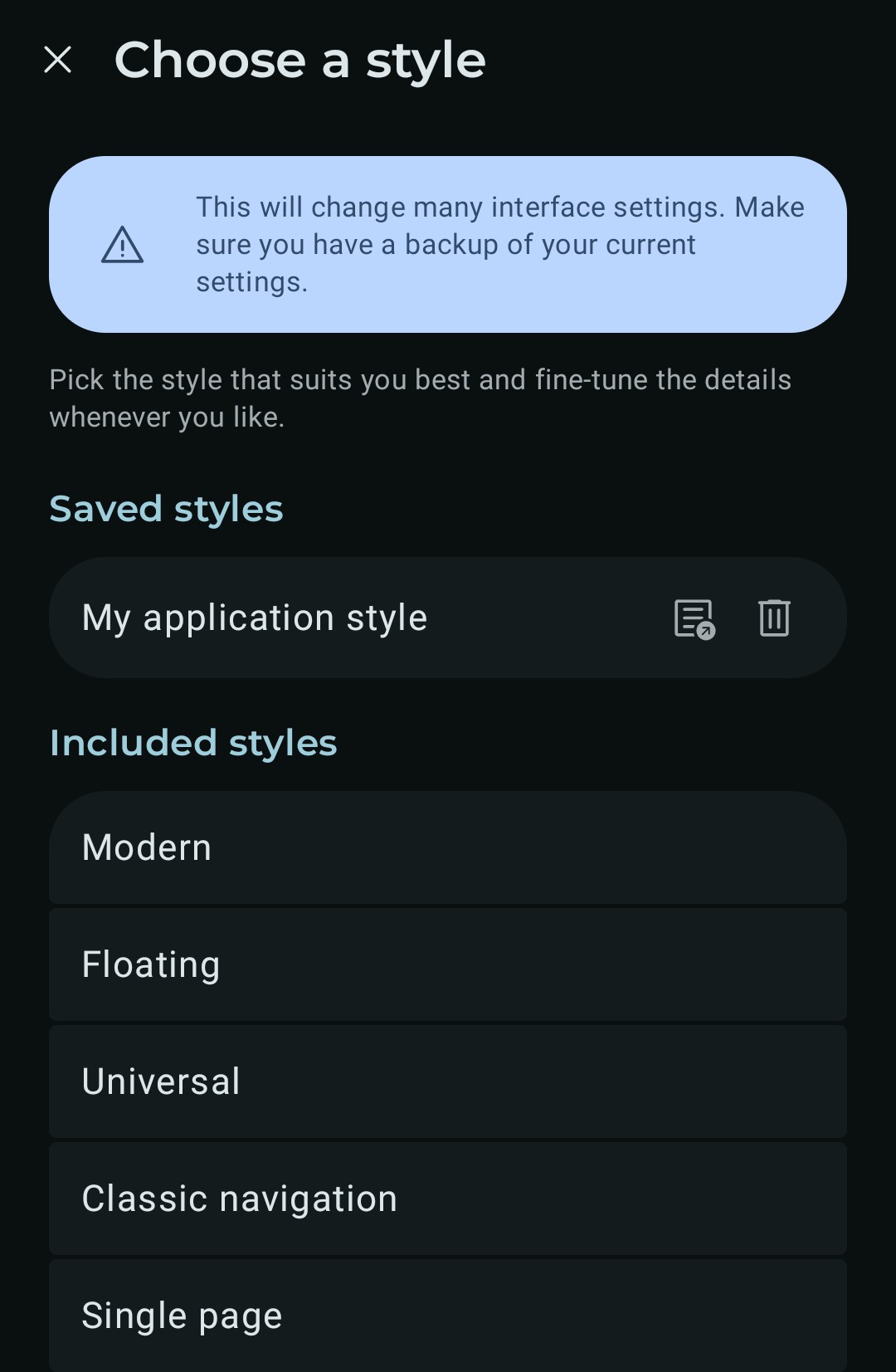
For full application styles and now playing styles, the export flow is two steps. Use the Application style section in Interface settings, or the Now playing style section in Now playing screens:
- Tap Save, give the style a clear name, and tap Save again.
- Tap Change, then tap the export button next to your style under Saved styles.
Color themes
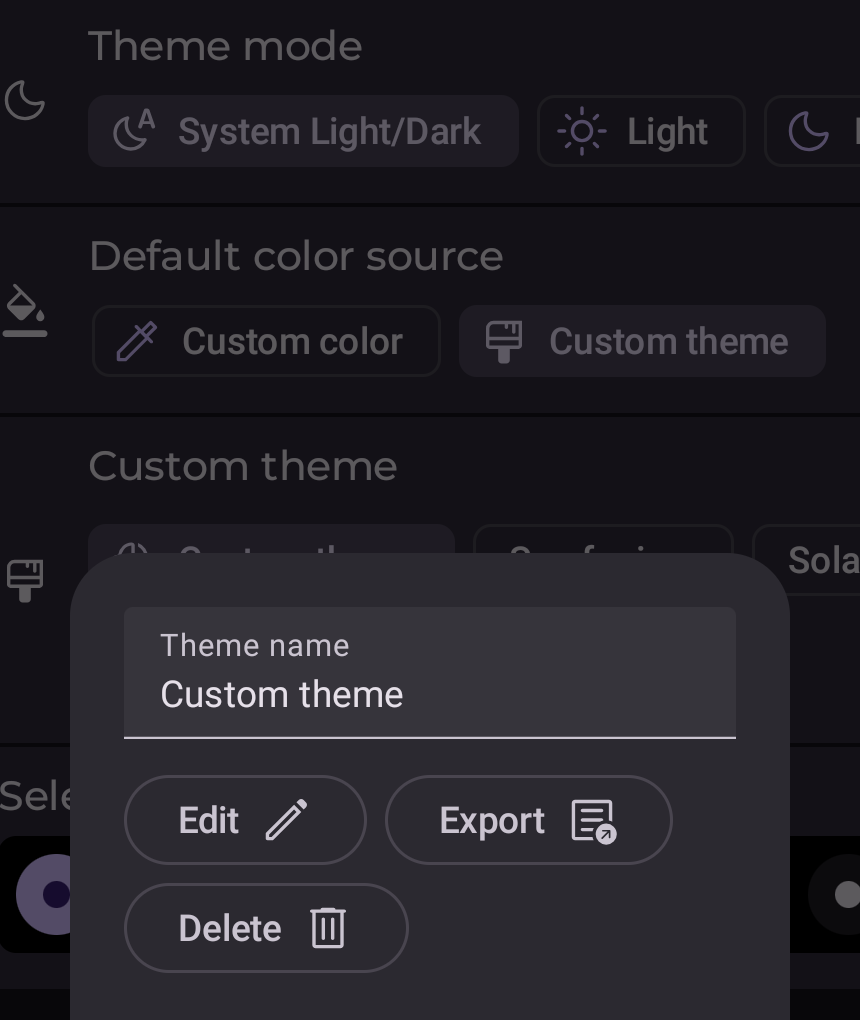
For color themes, save the theme first, then tap the theme and use the export option from the theme dialog.
Smart playlists
Smart playlists can be uploaded from a full application style detail page as associated content. Export the playlist from Symfonium and upload the .symspl file directly.
Icon packs
Icon packs are uploaded as signed Android APK files. The APK must expose exactly one Symfonium icon-pack service, include the required res/xml/symfonium_icon_pack.xml map, and keep the same package name and signer certificate set for later updates.
Symfonium Customizations validates the APK package name, signer fingerprints, manifest surface, icon-pack XML version, pack count, and icon counts before moderation. The current icon-pack XML format requires version="1" and maps to Symfonium 16.0.0 or newer.
What helps moderation
Uploads are reviewed before they become public. A submission is easier to approve when:
- the uploaded file matches the selected customization type
- icon-pack APK updates keep the original package name and signer certificates
- the screenshots belong to the uploaded customization
- the description explains what the customization changes or provides
If a submission is misleading, broken, abusive, or clearly duplicates someone else's work, it may be rejected or removed later.
See the Terms of use and Privacy notice for the current legal and moderation baseline.